
Public launch
MakeWeb.ai · 2024
Product Hunt records the public launch of MakeWeb.ai as an AI-controlled website builder using prompts or screenshots.
View the Product Hunt launch (opens in a new tab)MakeWeb.ai · AI website builder
MakeWeb.ai gave founders and small teams two ways to start a website. They could describe the page they wanted or upload a visual reference. The builder turned that input into an editable page they could refine, publish, or export as code.
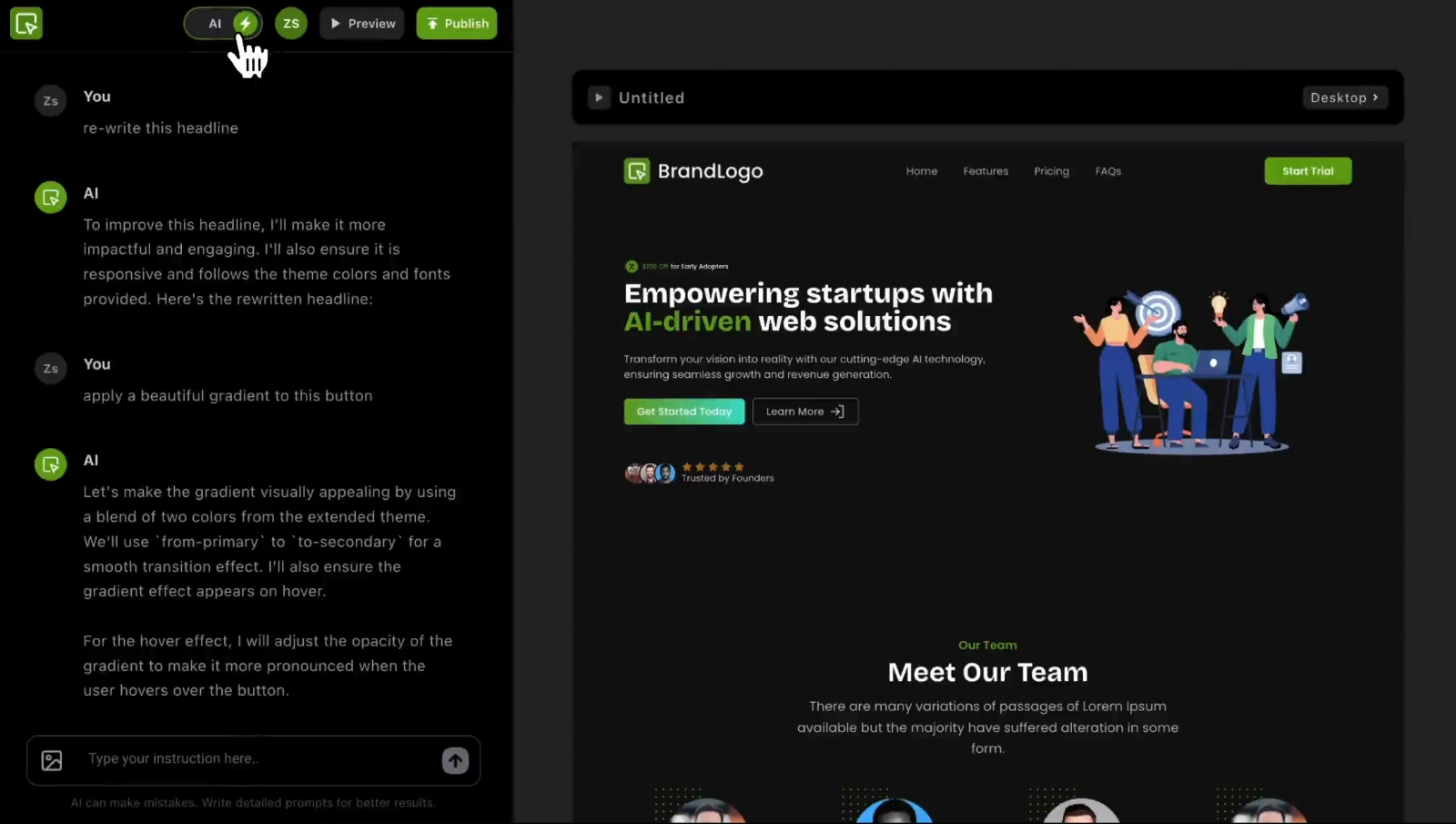
01 / Product demo
This short editor clip shows a generated page alongside its AI conversation, then switches to visual editing. The feature demos below show how users start a page and export the result.
02 / The challenge
A prompt can get a page started, but the user still needs to change the headline, swap an image, or move a section. The product challenge was to keep those edits in the same workflow, so the generated page could become something the user was ready to publish.
03 / What the product did
Describe a page in plain language or provide a visual reference. MakeWeb.ai turns that input into editable sections on the canvas.
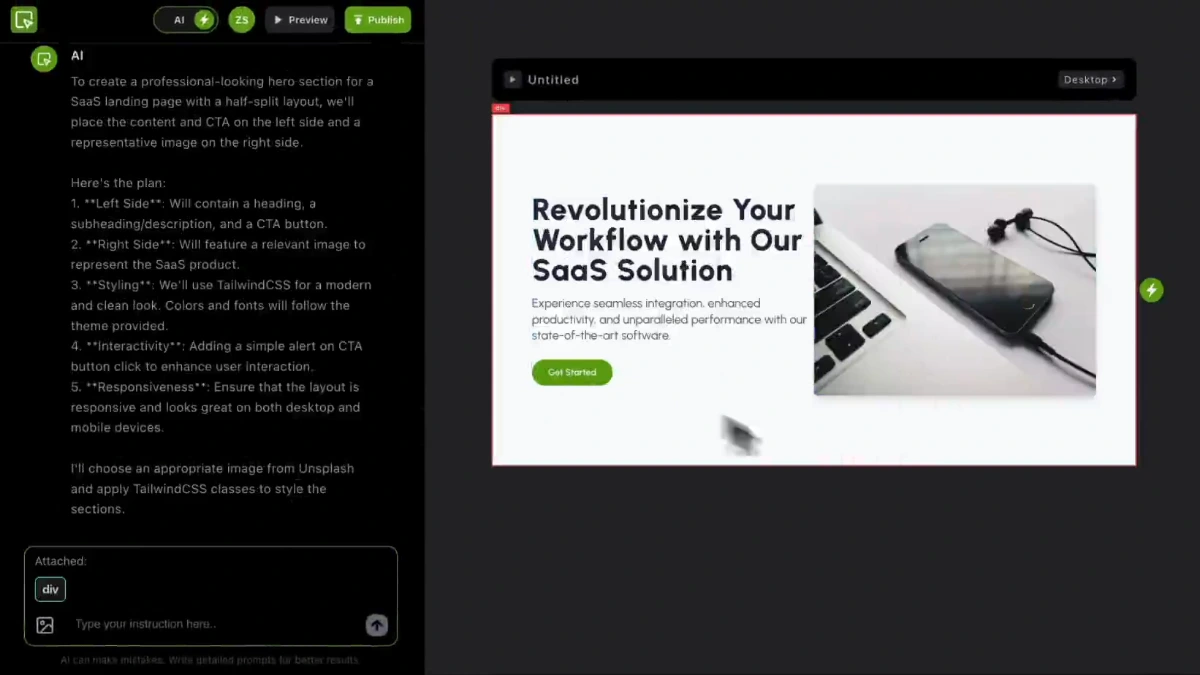
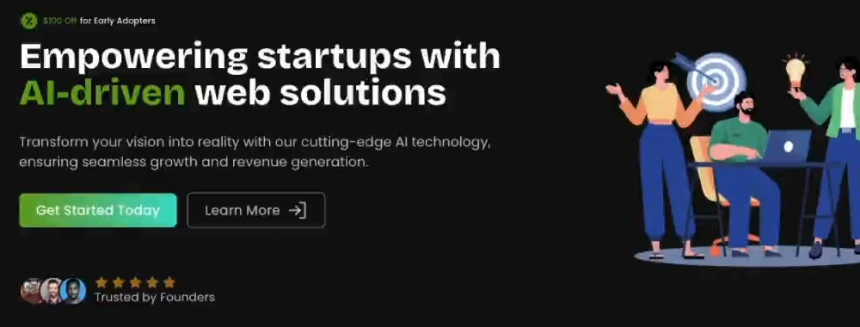
A generated SaaS hero section, ready to edit. Mobile view focuses on the result. View full size ↗
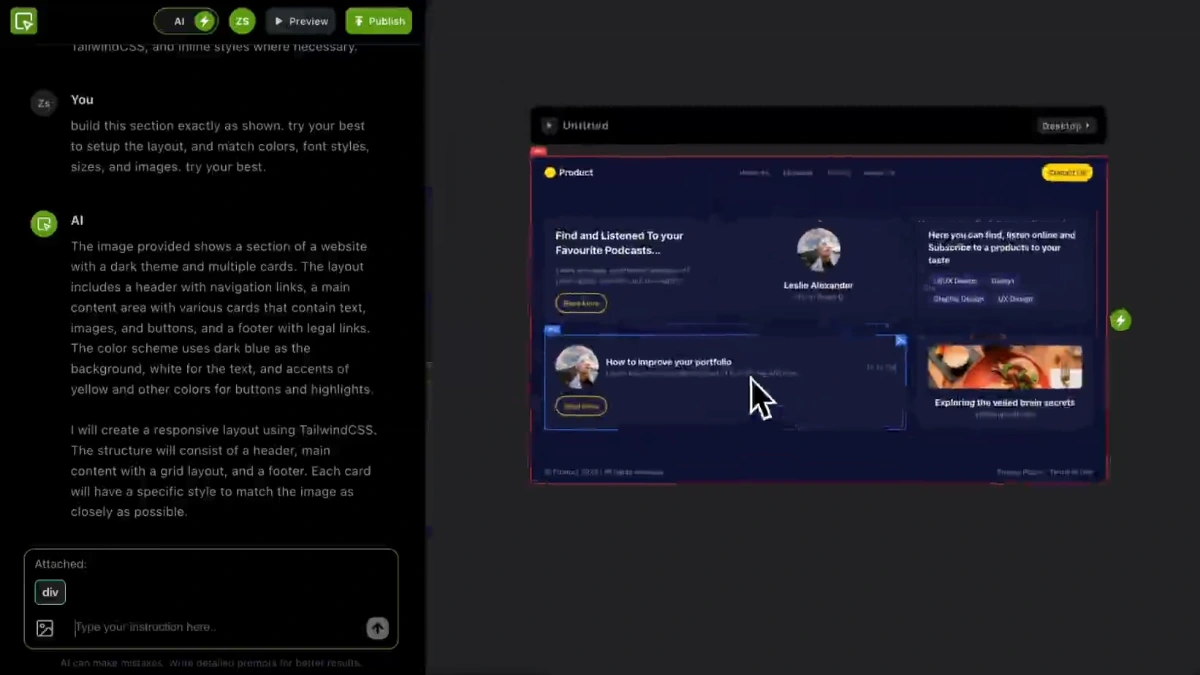
A visual-reference request and the generated page in the screenshot-to-page demo. View full size ↗
Select a section and ask AI to revise it. Use the visual editor to adjust the layout or add components where needed.
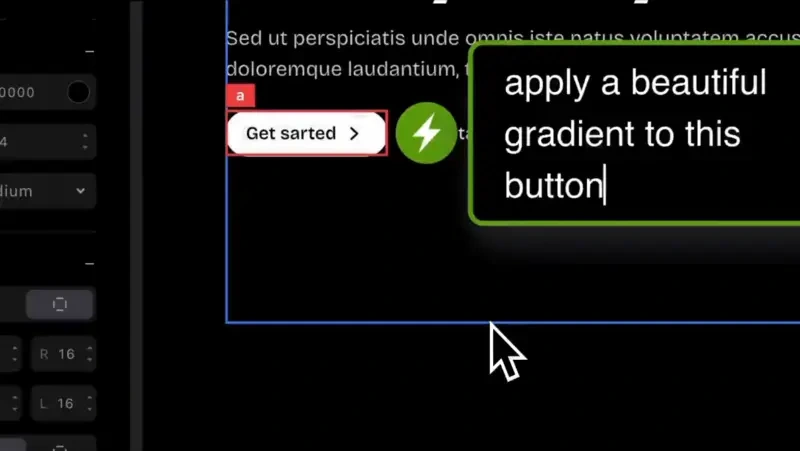
Select & Edit: request a gradient on the selected button. View full size ↗
The editor demo shows the gradient button alongside the AI conversation. View full size ↗
Publish the finished site, connect a custom domain, or export the HTML, CSS, and JavaScript to continue working elsewhere.
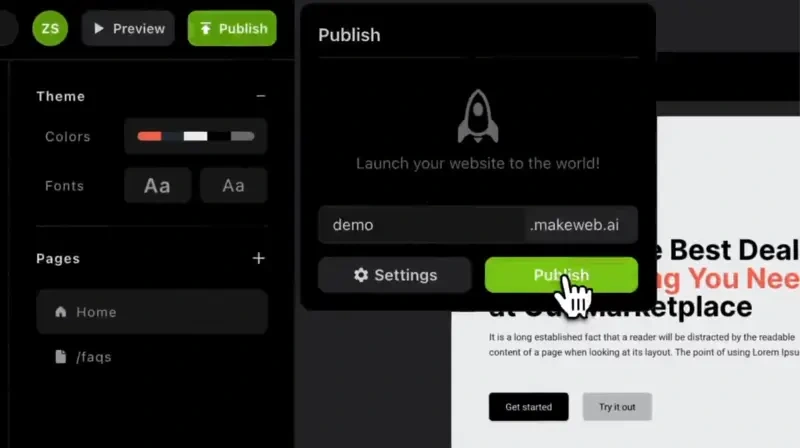
The original Publish dialog. MagicWeb’s product page also describes connecting a custom domain. View full size ↗
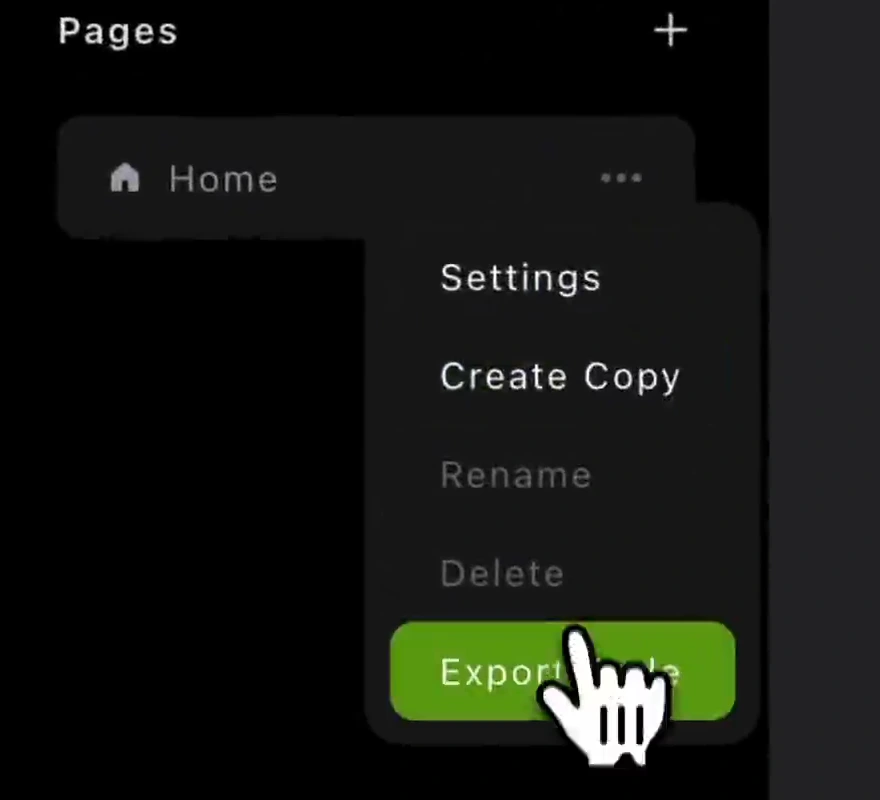
Export Code from the page menu to continue working outside the builder. View full size ↗
04 / Product outcome
MakeWeb.ai launched publicly in 2024. It gave users a way to start with a prompt or screenshot, refine the result in a visual editor, and choose between publishing the site and exporting its code. The original product demos are available at MagicWeb.
Public launch
Product Hunt records the public launch of MakeWeb.ai as an AI-controlled website builder using prompts or screenshots.
View the Product Hunt launch (opens in a new tab)Explore the product
Explore AI chat, visual editing, publishing, and code export in the original product material hosted at MagicWeb.
Explore MagicWeb (opens in a new tab)Tell us what users should be able to do after the AI generates its first result. In a free 20-minute call, we’ll help you decide what belongs in version one and what can wait.
Request a free 20-minute callExplore more success stories